
how to program thermostat
author: Somi
2025-04-22
How to Program a Thermostat
1. Introduction
Programming your thermostat is a game-changer for energy efficiency and home comfort. A well-programmed thermostat, such as those from Ocean Controls Limited, can automatically adjust temperatures based on your schedule, saving you money and ensuring your home is always at the ideal setting. In this guide, we’ll walk you through the process, whether you have a basic programmable model or a cutting-edge smart thermostat.
2. Understand Your Thermostat’s Capabilities
Types of Programmable Thermostats
- Basic 5-2 or 7-Day Models: These allow separate weekday and weekend schedules (5-2) or unique settings for each day (7-day). Ocean Controls Limited’s Essential Series is a great example, offering straightforward programming for budget-conscious users.
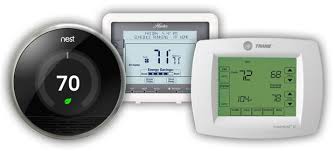
- Smart Thermostats: Advanced models like the OceanSmart Pro Series let you create custom schedules, adjust remotely via an app, and even learn your habits over time.
Key Features to Know
- Temperature Differential: The range between when the thermostat turns on and off (e.g., heating at 68°F and turning off at 70°F).
- Geofencing: Smart thermostats can detect your location and adjust temperatures when you leave or arrive home.
- Vacation Mode: A feature that maintains a safe temperature while you’re away, saving energy without risking frozen pipes or overheating.
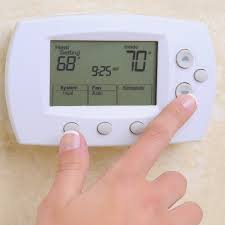
3. Programming a Basic Programmable Thermostat (Ocean Controls Limited Essential Series)
Step 1: Access the Programming Menu
- Press the PROGRAM or SET button on the thermostat.
- Look for prompts like DAY/TIME or SCHEDULE SETUP.
Step 2: Set the Clock
- Ensure the thermostat’s clock is accurate. Use the +/- buttons to adjust the day, hour, and minute.
- Tip: Many Ocean Controls Limited thermostats automatically update for daylight saving time, but double-check this in the settings.
Step 3: Create a Daily Schedule
Most thermostats divide the day into four periods:
- Morning (Wake): Set a warmer temperature for when you wake up (e.g., 68°F).
- Day (Away): Lower the temperature for when you’re at work (e.g., 62°F for heating, 78°F for cooling).
- Evening (Return): Raise/lower the temperature before you get home (e.g., 68°F by 6 PM).
- Night (Sleep): Set a cooler temperature for sleeping (e.g., 64°F).
- Use the MODE button to toggle between heating and cooling schedules.
- For 5-2 models, program weekdays together and weekends separately.
Step 4: Save and Verify
- Press SAVE or DONE to lock in your schedule.
- Check each period by navigating through the schedule on the thermostat’s display.
4. Programming a Smart Thermostat (OceanSmart Pro Series)
Step 1: Use the Mobile App
- Download the OceanHome App and log in to your account.
- Select your thermostat and tap Schedule or Program.
Step 2: Create a Custom Schedule
- Drag-and-drop temperature settings for each hour of the day.
- Example:
- 6 AM: 68°F (heating)
- 9 AM–5 PM: 62°F (away)
- 6 PM: 68°F (return)
- 10 PM: 64°F (sleep)
- Enable Adaptive Learning (if available) to let the thermostat optimize schedules based on your habits.
Step 3: Set Up Geofencing (Optional)
- In the app, activate Location Services to trigger “Away” mode when you leave a certain radius and “Home” mode when you return.
- Note: This feature requires the app to access your phone’s location.
Step 4: Activate Vacation Mode
- Before leaving for a trip, go to Settings > Vacation in the app.
- Set a consistent temperature (e.g., 55°F for heating in winter) and specify the start/end dates.
- The thermostat will maintain this setting until your scheduled return.
5. Tips for Optimizing Your Schedule
Energy-Saving Strategies
- Adjust by 7–10°F: For every degree you lower the heat (or raise the AC) during away/sleep periods, you can save up to 10% on energy bills annually.
- Avoid Extreme Shifts: Sudden temperature changes can strain your HVAC system. Use gradual adjustments (e.g., 2–3°F per hour).
Seasonal Adjustments
- Winter vs. Summer: Swap heating and cooling schedules as the seasons change. Many Ocean Controls Limited thermostats let you copy and invert schedules for quick updates.
Test Your Schedule
- After programming, monitor the thermostat for 24 hours to ensure it switches between modes correctly.
- Check the app’s energy usage reports (for smart models) to see how your schedule impacts consumption.
6. Troubleshooting Common Issues
Schedule Not Activating
- Check the Clock: Ensure the thermostat’s time and date are correct.
- Verify Mode Settings: Make sure the thermostat is in Program mode, not Hold (which overrides schedules).
- Battery Power: For battery-powered models, replace old batteries that might cause schedule delays.
App Syncing Problems (Smart Thermostats)
- Restart the Thermostat: Power cycle it by removing the batteries or turning off the circuit breaker for 30 seconds.
- Update the App: Ensure you have the latest version of the OceanHome App.
- Reconnect to WiFi: Go to the thermostat’s settings and re-enter your WiFi password.
Manual Overrides
If you need to adjust the temperature temporarily without disrupting the schedule:
- For basic models, press TEMP UP/DOWN; the thermostat will revert to the schedule after a set period (usually 1–4 hours).
- For smart models, use the app to set a Temporary Hold or adjust directly on the thermostat’s screen.
Conclusion
Programming your Ocean Controls Limited thermostat is a simple yet powerful way to enhance comfort and cut energy costs. Whether you’re using a basic model or a smart thermostat, following these steps will help you create a schedule that fits your lifestyle. Remember to update your settings seasonally and take advantage of features like geofencing and vacation mode for maximum efficiency.
For more guidance, refer to your thermostat’s manual or explore the Ocean Controls Limited website for video tutorials. Happy programming—and enjoy the savings!


do thermostats have batteries
what is emergency heat on the thermostat
Related Article
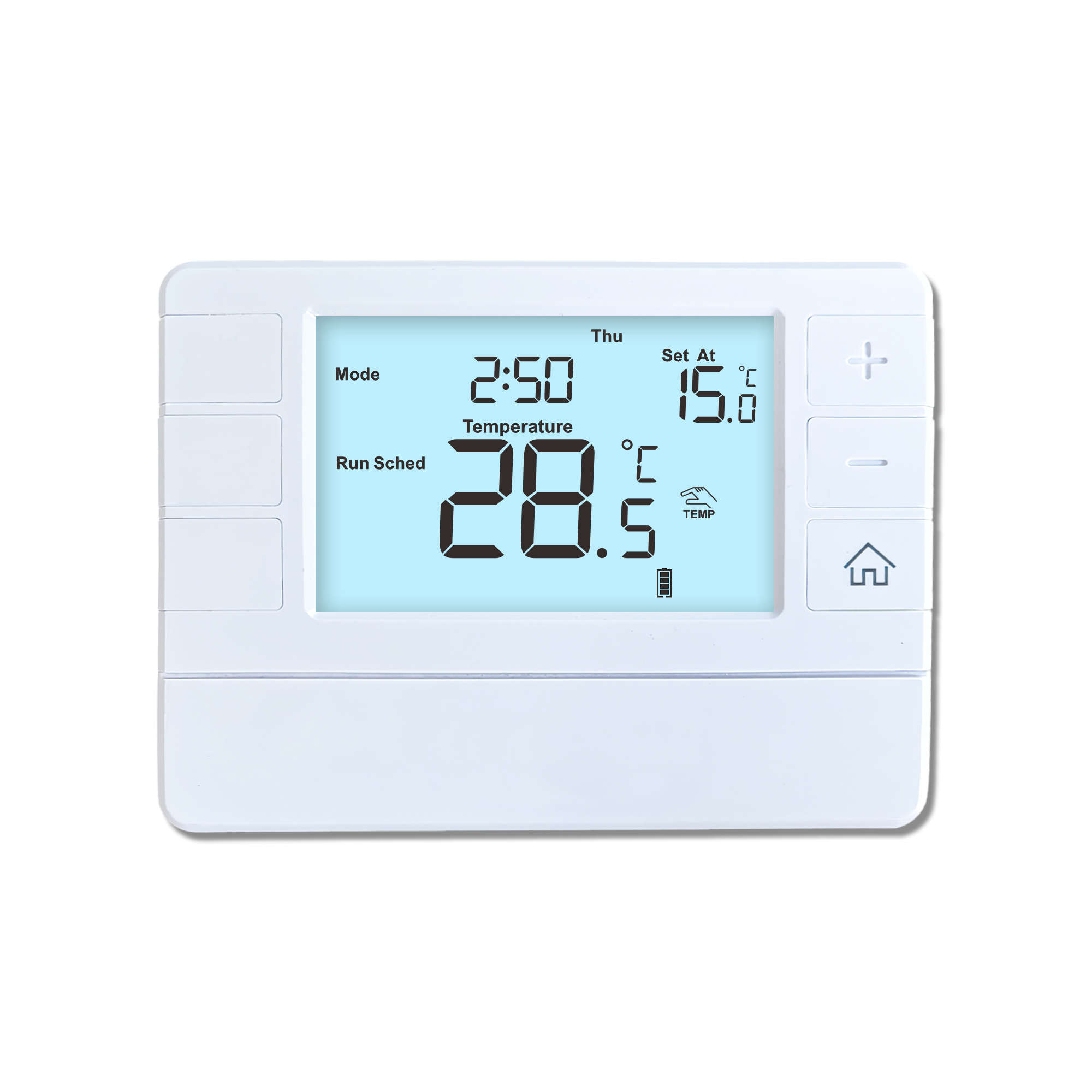
This shift has made traditional, manual thermostats obsolete, paving the way for advanced smart technologies.
Why You Need a Smart Thermostat
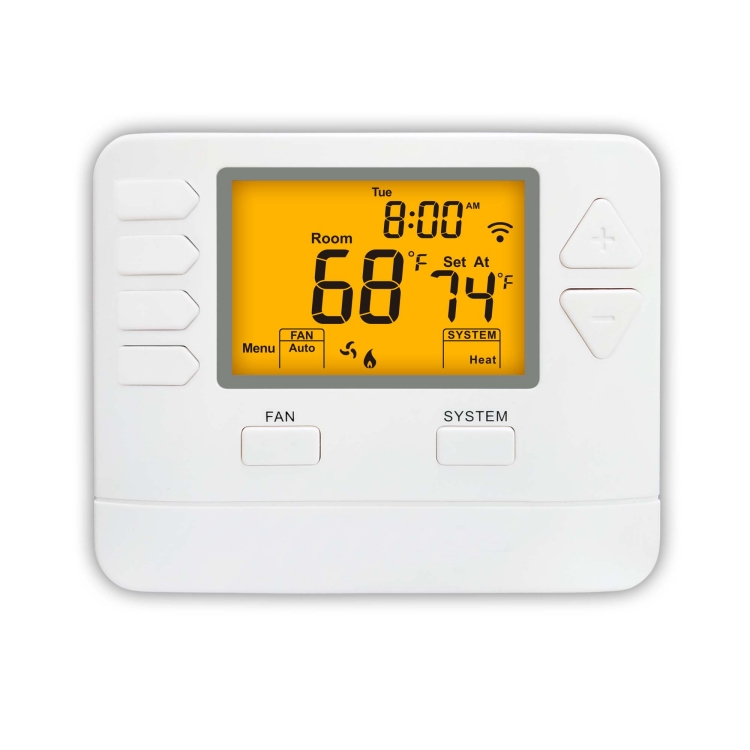
A true 7 Day programmable room thermostat offers the ultimate granular control. It allows users to program a distinct, customized heating and cooling schedule for every single day of the week.
How a 7 Day Programmable Room Thermostat Maximizes Home Comfort and Efficiency
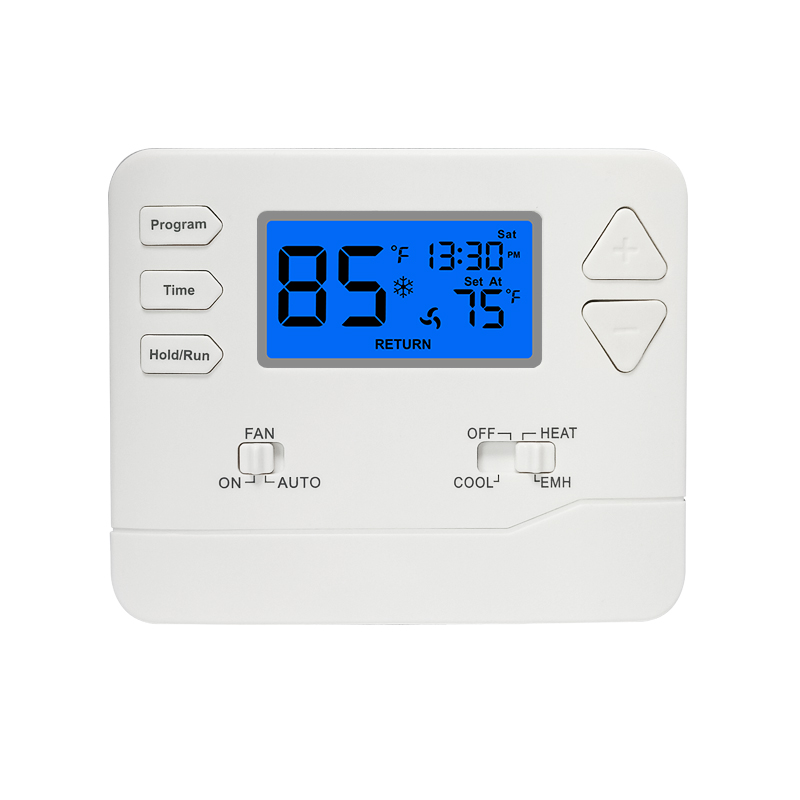
A premium Riseem thermostat is not just a digital display on your wall; it is the ultimate gatekeeper of your indoor environment.
Why a Quality Thermostat Is the Key to a More Comfortable Home
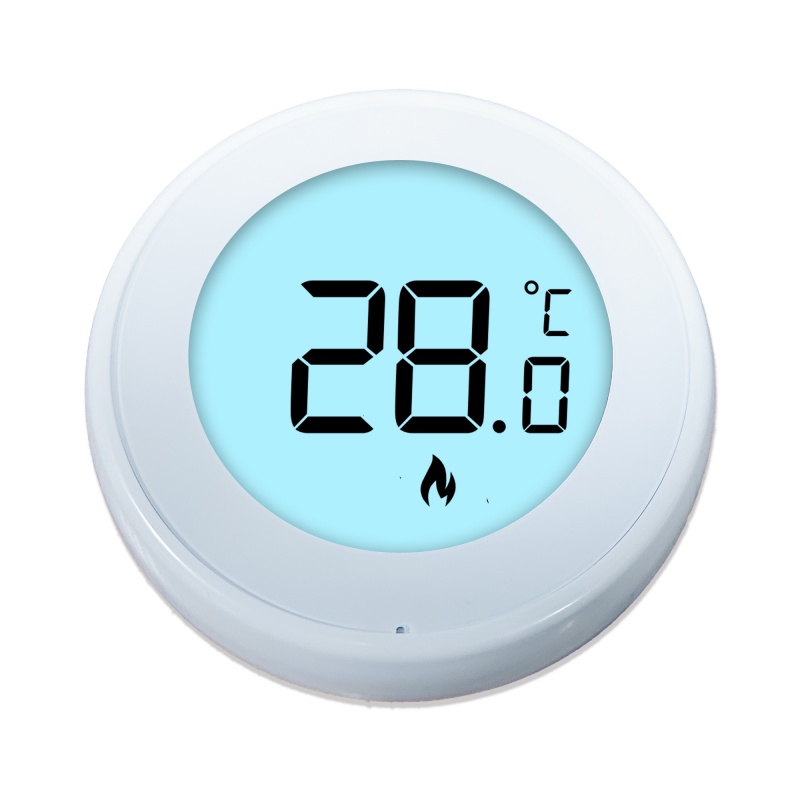
While the TUYA app provides the elegant interface, the physical thermostat remains the brain of the operation. Riseem has engineered a device that looks minimalist on your wall while delivering industrial-grade precision to your HVAC equipment.
Welcome to the Future of Home Automation The Ultimate Guide to TUYA WIFI Smart Thermostats