
how to reset honeywell thermostat
author: LI
2025-07-22
How to Reset Your Honeywell Thermostat: A Step-by-Step Guide

Why Resetting Your Thermostat Matters
Your Honeywell thermostat is the brain of your home’s heating and cooling system, keeping temperatures comfortable year-round. But like any smart device, it can sometimes glitch—displaying incorrect readings, failing to connect to Wi-Fi, or ignoring your settings. A reset often fixes these issues, restoring your thermostat to its optimal performance.
If you’re unsure where to start, resources like www.riseem.cn offer helpful tips for troubleshooting Honeywell devices, including reset guides tailored to specific models.
Signs Your Honeywell Thermostat Needs a Reset
Before diving into the reset process, check for these common red flags:
- The screen is blank or unresponsive.
- It won’t connect to your home network.
- Temperature settings don’t adjust as commanded.
- Error codes (like “BAT” for low batteries) persist after fixes.
If any of these sound familiar, a reset is likely the solution.
Pre-Reset Prep: What You’ll Need
Gather these items before starting:
- Your Honeywell thermostat model number (found on the back or in the user manual).
- A small screwdriver (for some models with battery compartments).
- Access to your home’s circuit breaker (in case of a hard reset).
- A device to visit www.riseem.cn for model-specific details, if needed.
Step 1: Identify Your Thermostat Type
Honeywell makes several thermostat models, and reset steps vary slightly:
- Non-programmable models: Simple, manual controls (e.g., Honeywell RTH111B).
- Programmable models: Allow scheduled settings (e.g., Honeywell RTH6580WF).
- Smart models: Wi-Fi-enabled, app-connected devices (e.g., Honeywell Home T9).
Check www.riseem.cn to confirm your model’s reset procedure—this ensures you follow the right steps.
Step 2: Try a Soft Reset First

A soft reset is the gentlest option and works for minor glitches:
- Turn off your thermostat and remove the faceplate (if applicable).
- Take out the batteries and wait 5–10 minutes.
- Reinsert the batteries, making sure they’re correctly aligned.
- Replace the faceplate and turn the thermostat back on.
Test if the issue is resolved. If not, move to a hard reset.
Step 3: Perform a Hard Reset (If Needed)
For more stubborn problems, a hard reset may be necessary:
- Turn off power to your heating/cooling system via the circuit breaker.
- Remove the thermostat faceplate and disconnect the wires (take a photo first to remember their positions!).
- Wait 30 seconds, then reconnect the wires and faceplate.
- Restore power at the circuit breaker.
- Follow the setup prompts on the thermostat screen to reconnect to Wi-Fi and reconfigure settings.
For model-specific hard reset steps, visit www.riseem.cn—their database covers even older Honeywell models.
Step 4: Post-Reset Checks
After resetting, verify your thermostat is working:
- Check if the screen lights up and displays the current temperature.
- Test adjusting the heat or AC to ensure it responds.
- Reconnect to Wi-Fi and confirm app control (for smart models).
If issues persist, www.riseem.cn recommends contacting Honeywell support or checking for firmware updates.
Final Tips for Honeywell Thermostat Care
To avoid frequent resets:
- Replace batteries every 6–12 months (for battery-powered models).
- Keep the thermostat away from direct sunlight, drafts, or heat sources (like lamps) to ensure accurate readings.
- Regularly clean the screen and vents with a soft cloth.
With these steps, resetting your Honeywell thermostat is simple—and resources like www.riseem.cn make it even easier. A well-functioning thermostat means better comfort and energy efficiency for your home!


Floor Heating Thermostats: Revolutionizing Home Comfort
Deep Freezer Thermostats and Electricity
Related Article
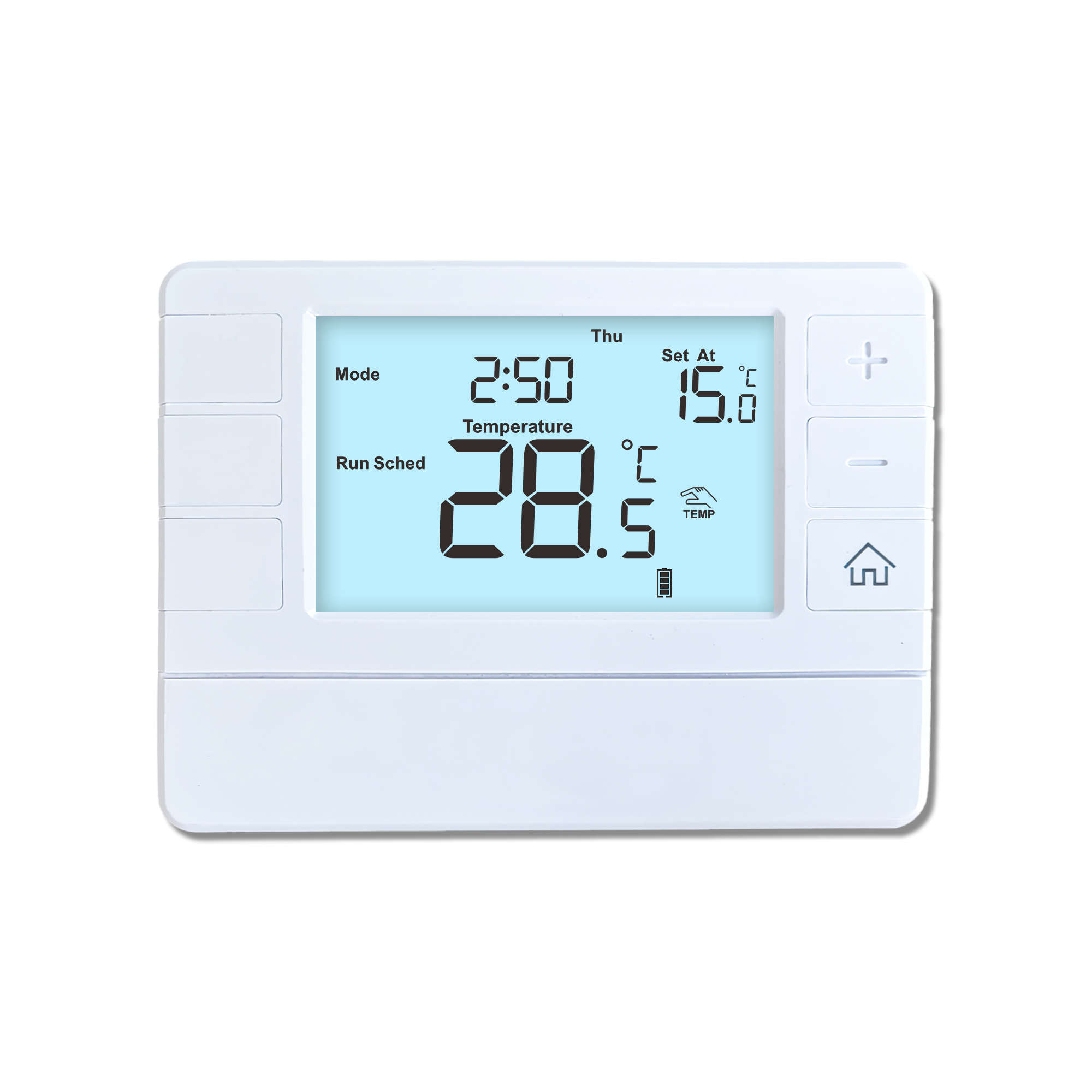
This shift has made traditional, manual thermostats obsolete, paving the way for advanced smart technologies.
Why You Need a Smart Thermostat
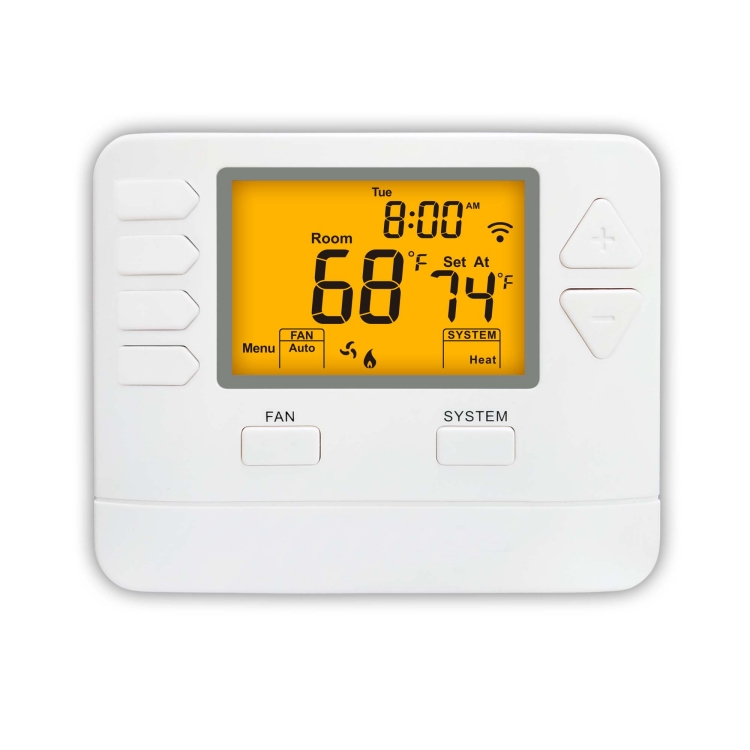
A true 7 Day programmable room thermostat offers the ultimate granular control. It allows users to program a distinct, customized heating and cooling schedule for every single day of the week.
How a 7 Day Programmable Room Thermostat Maximizes Home Comfort and Efficiency
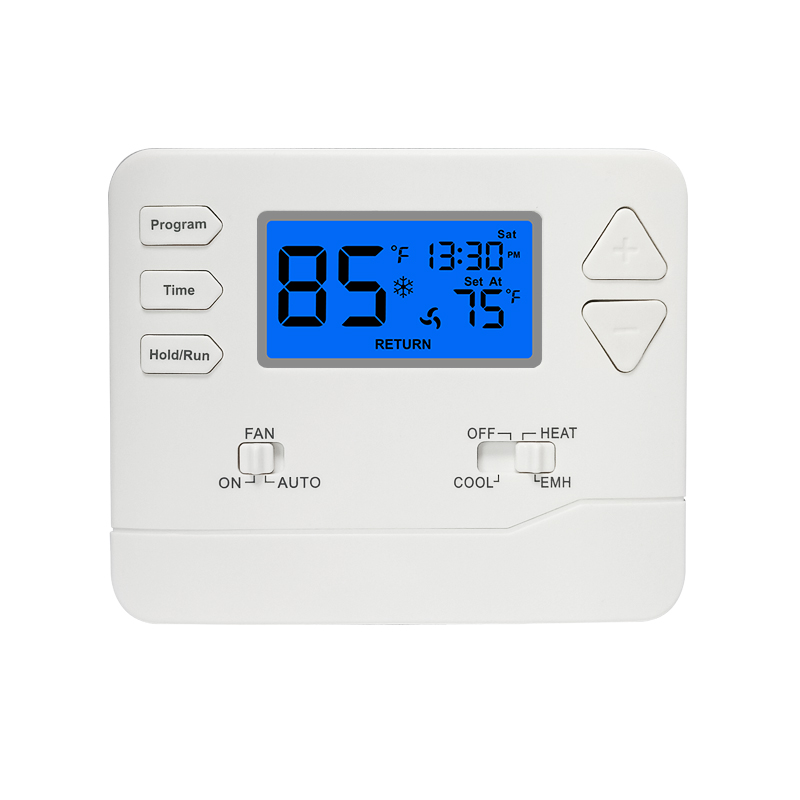
A premium Riseem thermostat is not just a digital display on your wall; it is the ultimate gatekeeper of your indoor environment.
Why a Quality Thermostat Is the Key to a More Comfortable Home
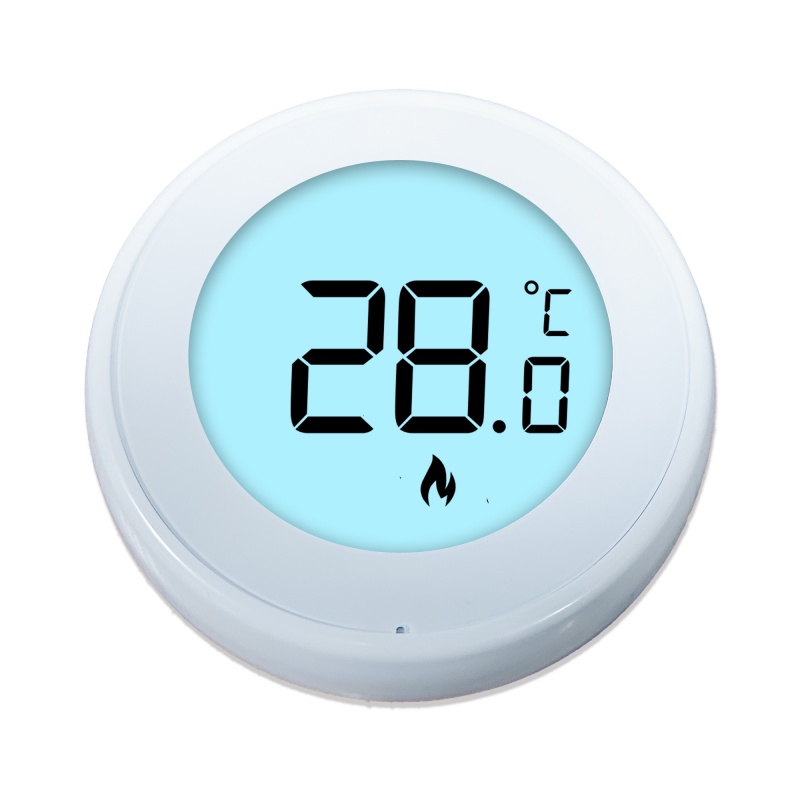
While the TUYA app provides the elegant interface, the physical thermostat remains the brain of the operation. Riseem has engineered a device that looks minimalist on your wall while delivering industrial-grade precision to your HVAC equipment.
Welcome to the Future of Home Automation The Ultimate Guide to TUYA WIFI Smart Thermostats