
How to use the smart home thermostat
author: Lily
2025-03-05
How to Use the Smart Home Thermostat

In the era of smart homes, the smart thermostat has emerged as a game - changing device that revolutionizes how we manage the temperature in our living spaces. If you've recently installed one or are considering getting a smart thermostat, understanding how to use it effectively is key to maximizing its benefits.
Initial Setup

Unboxing and Inspection
When you first receive your smart thermostat, carefully unbox it. Check that all the components are present, which usually include the thermostat unit itself, a mounting plate, screws, a power cable (if applicable), and an instruction manual. Inspect the thermostat for any signs of damage during transit.
Installation
- Location Selection: Choose an ideal location for your smart thermostat. It should be placed in a central area of the room or home, away from direct sunlight, drafts, heat - generating appliances like radiators or ovens, and exterior walls. A central location ensures that it accurately senses the average temperature of the space. For example, in a multi - room house, a hallway near the center of the living area is often a good choice.
- Mounting: Follow the installation instructions provided. Typically, you'll start by attaching the mounting plate to the wall using the screws provided. Make sure it's level. Then, connect the wires according to the color - coding or labeling in the manual. If you're replacing an old thermostat, take a picture of the wire connections on the old one before disconnecting them to avoid confusion. Finally, snap the thermostat unit onto the mounting plate.
Powering On and Connecting to Wi - Fi
- Power Up: Once installed, power on the smart thermostat. It may take a few seconds to boot up. Some thermostats are battery - powered, while others are hard - wired. Ensure that the power source is working correctly.
- Wi - Fi Setup: Most smart thermostats require a Wi - Fi connection to function fully. Navigate to the Wi - Fi settings on the thermostat's display (usually through a menu option). Select your home Wi - Fi network from the list of available networks and enter the password. If the connection fails, double - check the password and ensure that your Wi - Fi router is working properly.
Setting Up the Companion App
- Download the App: Search for the official app of your smart thermostat's brand in your smartphone's app store (either the Apple App Store or Google Play Store). Download and install the app on your phone.
- Create an Account: Open the app and create an account if you don't already have one. This account will allow you to access and control your thermostat from anywhere with an internet connection.
- Link the Thermostat to the App: Follow the in - app instructions to link your thermostat to your account. This usually involves scanning a QR code on the thermostat or entering a unique device ID. Once linked, the app will display your thermostat and its current status.
Basic Operations
Setting the Temperature
- Using the Thermostat Display: On the thermostat's display, there are usually up and down arrows or a touch - sensitive slider to adjust the temperature. Navigate to the temperature setting option in the menu (if required) and set the desired temperature. For example, if you want to increase the temperature on a cold day, press the up arrow until you reach your preferred setting, such as 72°F (22°C).
- Using the App: Open the app on your smartphone. Locate the temperature control section, which is often prominently displayed. Use the on - screen controls to set the temperature. You can also see the current indoor temperature and the target temperature side by side on the app.
Changing the Heating or Cooling Mode
- Thermostat Controls: Most smart thermostats have a mode button or option in the menu. Press the mode button to cycle through different modes, such as "Heat" for warming the house in winter, "Cool" for cooling in summer, "Auto" which automatically switches between heating and cooling based on the set temperature, and "Off" to turn off the heating or cooling system.
- App Controls: In the app, look for the mode selection option. It's usually presented as a dropdown menu or a set of icons. Select the mode you want. For instance, if the weather suddenly turns warm in spring, you can quickly switch from "Heat" to "Cool" mode using the app, even if you're away from home.
Advanced Features
Programming Schedules
- Daily Schedules: Use the app or the thermostat's built - in programming interface to set daily schedules. For example, you can set the thermostat to lower the temperature to 65°F (18°C) at night when you're sleeping and raise it to 70°F (21°C) in the morning before you wake up. In the app, go to the scheduling section and create a new schedule. Set the start and end times for each temperature setting and repeat the process for different times of the day.
- Weekly Schedules: Some smart thermostats allow you to set different schedules for each day of the week. This is useful if your routine varies from day to day. For example, you might want the temperature to be lower during the day on weekdays when you're at work but higher on weekends when you're at home. Create a separate schedule for each day, specifying the temperature changes at different times.
Zoning
- If Equipped: If your smart thermostat is part of a zoning system, you can control the temperature in different zones of your home independently. In the app, look for the zoning option. You can set different temperatures for each zone based on usage. For example, you can keep the bedroom cooler at night for better sleep while maintaining a warmer temperature in the living room during the evening.
- Zone Activation: Some thermostats with zoning capabilities can also be set to activate zones based on occupancy. If motion sensors are integrated with the system, the thermostat can detect when a room is occupied and adjust the temperature accordingly.
Energy - Saving Features
- Eco Mode: Many smart thermostats have an "Eco" or "Energy - Saving" mode. Activate this mode in the app or on the thermostat. In this mode, the thermostat adjusts the temperature slightly to save energy without sacrificing too much comfort. For example, it might raise the cooling temperature by a couple of degrees in summer or lower the heating temperature by a few degrees in winter.
- Adaptive Learning: Some advanced smart thermostats use adaptive learning algorithms. Over time, they learn your temperature preferences and daily routines. For example, if you consistently lower the temperature in the living room when you go to bed, the thermostat will start to adjust the temperature automatically at around the same time each day without you having to program it.
Voice Control
- Compatibility: Check if your smart thermostat is compatible with voice assistants like Amazon Alexa, Google Assistant, or Apple Siri. If it is, follow the setup instructions to connect your thermostat to the voice assistant.
- Voice Commands: Once connected, you can use voice commands to control the thermostat. For example, you can say "Alexa, set the temperature to 70 degrees" or "Hey Google, turn on the heat." This hands - free control is especially convenient when your hands are full or when you're relaxing on the couch.
Monitoring and MaintenanceThermostat
Checking the Thermostat's Status
- Display: Regularly check the thermostat's display to see the current temperature, the mode it's in, and any error messages. If there's an issue, such as a connection problem or a malfunction, the display may show an error code or a warning message.
- App: Open the app periodically to check the thermostat's status. The app can also provide additional information, such as energy usage history, which can help you identify patterns and potentially save more energy.
Software Updates
- Automatic Updates: Some smart thermostats are set to automatically update their software when new versions are available. However, it's a good idea to check the app or the thermostat's settings to ensure that automatic updates are enabled.
- Manual Updates: If your thermostat doesn't have automatic updates, check for software updates manually in the app or on the thermostat's official website. Installing updates can improve the thermostat's performance, add new features, and enhance security.
Battery Replacement (if applicable)
- Check Battery Status: If your smart thermostat is battery - powered, the app or the thermostat's display will usually show the battery status. When the battery is running low, replace it with new batteries of the recommended type.
- Replacement Procedure: Follow the instruction manual to safely remove the old batteries and install the new ones. Make sure to insert the batteries in the correct orientation.
By following these steps and exploring all the features of your smart thermostat, you can enjoy a comfortable, energy - efficient, and convenient living environment. Whether you're at home or away, you have full control over the temperature of your smart home.


What is the recommended thermostat for a house
What is a thermostat used for
Related Article
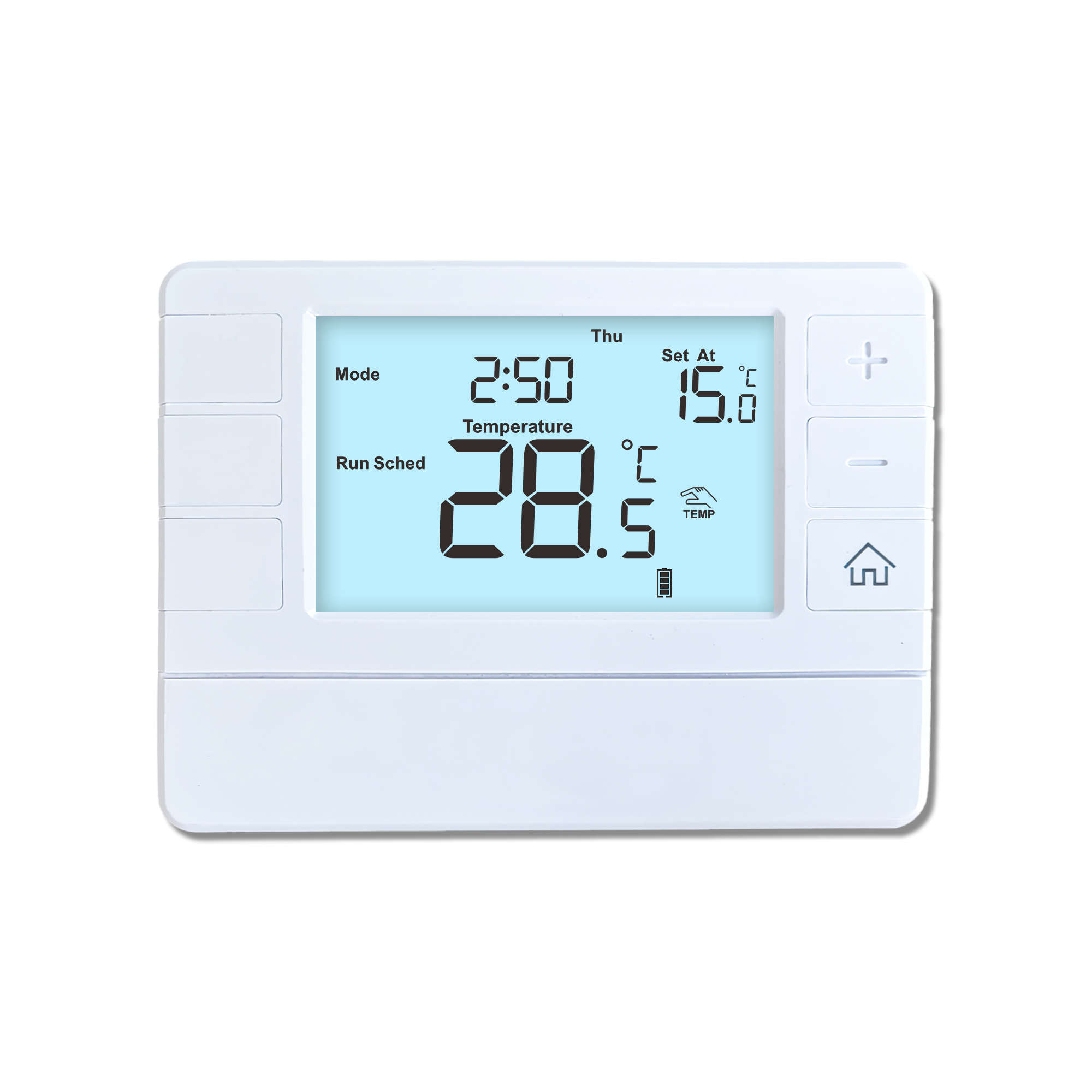
This shift has made traditional, manual thermostats obsolete, paving the way for advanced smart technologies.
Why You Need a Smart Thermostat
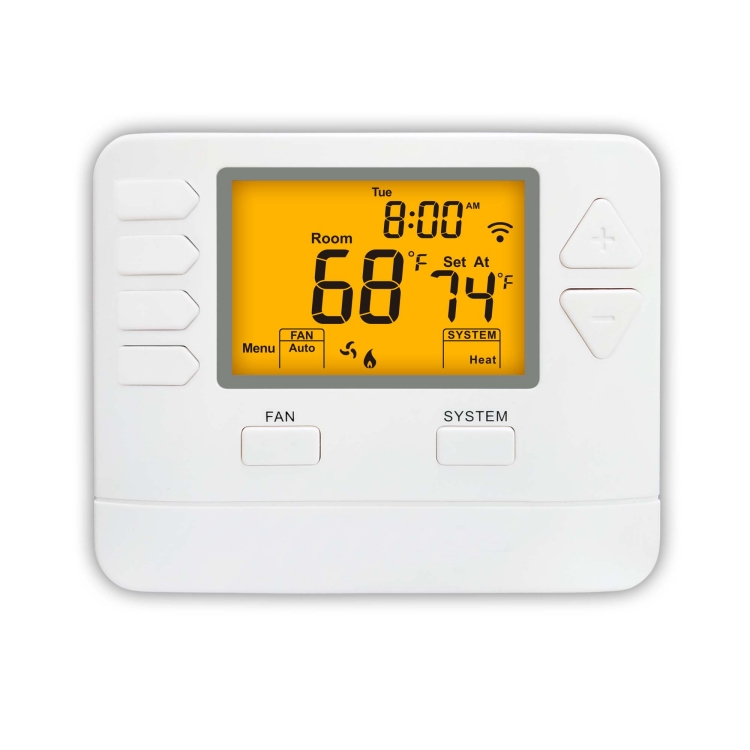
A true 7 Day programmable room thermostat offers the ultimate granular control. It allows users to program a distinct, customized heating and cooling schedule for every single day of the week.
How a 7 Day Programmable Room Thermostat Maximizes Home Comfort and Efficiency
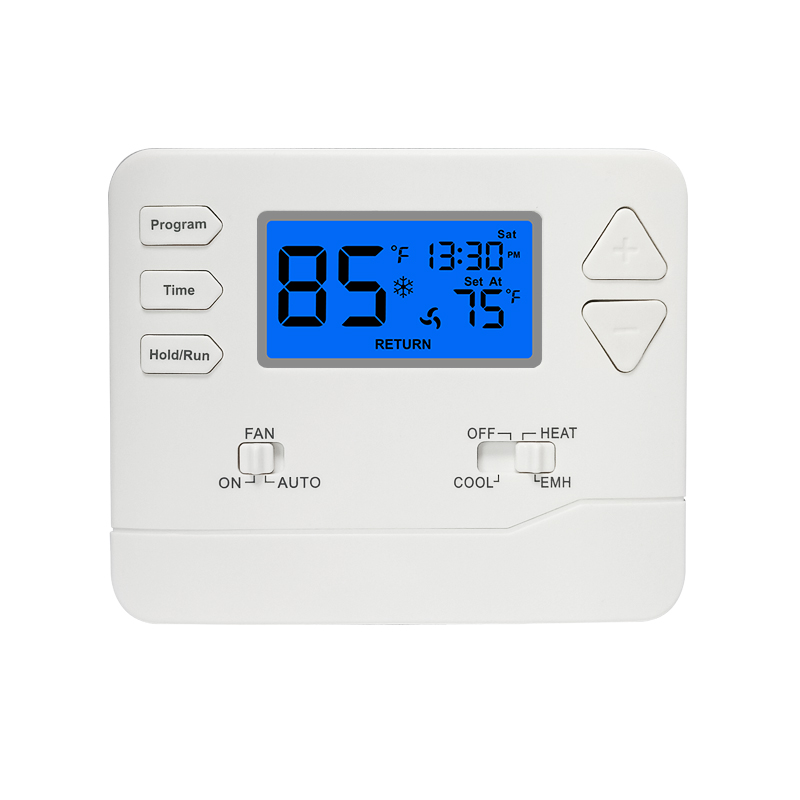
A premium Riseem thermostat is not just a digital display on your wall; it is the ultimate gatekeeper of your indoor environment.
Why a Quality Thermostat Is the Key to a More Comfortable Home
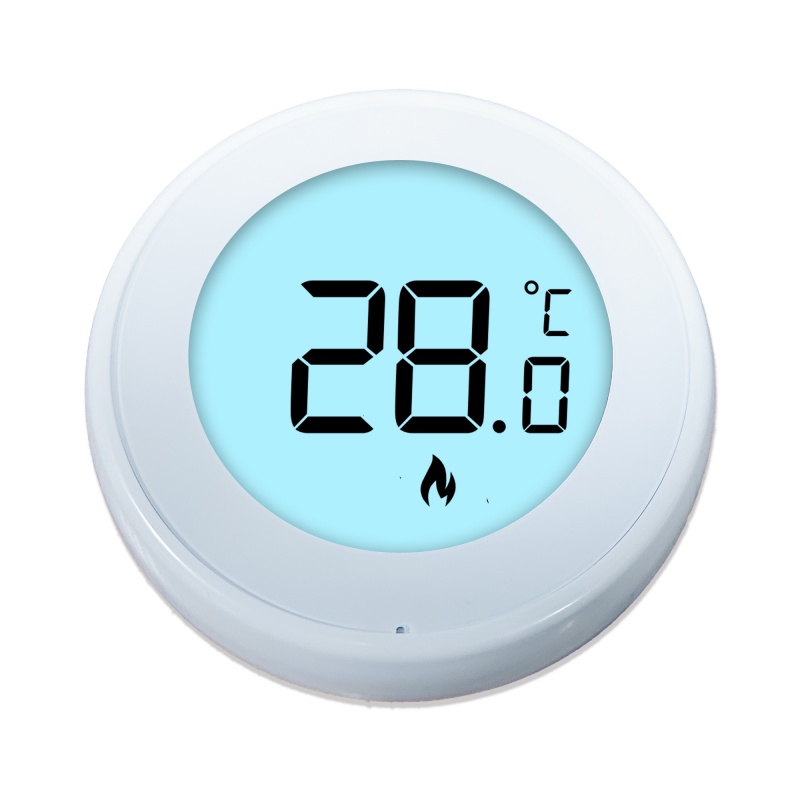
While the TUYA app provides the elegant interface, the physical thermostat remains the brain of the operation. Riseem has engineered a device that looks minimalist on your wall while delivering industrial-grade precision to your HVAC equipment.
Welcome to the Future of Home Automation The Ultimate Guide to TUYA WIFI Smart Thermostats