
How to use the WIFI thermostat
author: Lily
2025-07-12
How to Use the WiFi Thermostat
In today's digital age, smart home devices have become increasingly popular, and the WiFi thermostat is no exception. This innovative device allows users to control the temperature of their homes remotely, providing convenience and energy savings. However, for those who are new to this technology, using a WiFi thermostat can seem a bit daunting. In this article, we will guide you through the process of using a WiFi thermostat step by step.

Installation
The first step in using a WiFi thermostat is to install it properly. The installation process may vary depending on the model you have, but generally, it involves the following steps:
- Choose the right location: Select a location for the thermostat that is central to the area you want to control the temperature in. Avoid placing it near windows, doors, or heat sources, as these can affect the accuracy of the temperature readings.
- Turn off the power: Before you start installing the thermostat, make sure to turn off the power to your heating or cooling system at the circuit breaker.
- Remove the old thermostat: If you already have a thermostat installed, carefully remove it from the wall, taking note of the wiring connections.
- Install the new thermostat: Follow the manufacturer's instructions to install the new WiFi thermostat. This typically involves connecting the wires to the appropriate terminals on the thermostat and mounting it on the wall.
- Power on the thermostat: Once the thermostat is installed, turn the power back on at the circuit breaker and wait for the thermostat to power up.

Connecting to WiFi
After the thermostat is installed, the next step is to connect it to your home's WiFi network. Here's how:
- Download the app: Most WiFi thermostats come with a companion app that you can download to your smartphone or tablet. Search for the app in the app store or Google Play and download it to your device.
- Create an account: Open the app and create an account if you haven't already. This will allow you to control the thermostat remotely.
- Connect to the thermostat: Follow the app's instructions to connect your device to the thermostat. This usually involves selecting the thermostat from a list of available devices and entering your WiFi network password.
- Set up the thermostat: Once your device is connected to the thermostat, you can set up the thermostat's settings, such as the temperature range, schedule, and fan settings.

Controlling the Thermostat
Now that your WiFi thermostat is installed and connected to your home's WiFi network, you can start controlling it. Here are some ways to control the thermostat:
- Using the app: The easiest way to control the thermostat is through the companion app on your smartphone or tablet. You can adjust the temperature, turn the heating or cooling system on or off, and set a schedule using the app.
- Using voice control: Many WiFi thermostats are compatible with voice assistants, such as Amazon Alexa or Google Assistant. You can use voice commands to control the thermostat, such as "Alexa, set the temperature to 72 degrees" or "Hey Google, turn on the heat."
- Using the thermostat itself: If you prefer, you can also control the thermostat directly from the device. Most WiFi thermostats have a touch screen or buttons that you can use to adjust the temperature and settings.

Tips for Using a WiFi Thermostat
To get the most out of your WiFi thermostat, here are some tips to keep in mind:
- Set a schedule: One of the main benefits of a WiFi thermostat is the ability to set a schedule. By setting a schedule, you can automatically adjust the temperature of your home based on your daily routine, which can help you save energy and money.
- Use geofencing: Some WiFi thermostats support geofencing, which allows you to automatically adjust the temperature of your home based on your location. For example, you can set the thermostat to turn on the air conditioning when you're on your way home from work.
- Monitor your energy usage: Many WiFi thermostats provide energy usage reports, which can help you track your energy consumption and identify areas where you can save energy.
- Keep your thermostat updated: Make sure to keep your thermostat's firmware updated to ensure that it's running smoothly and has the latest features and security patches.

In conclusion, using a WiFi thermostat is a great way to control the temperature of your home remotely and save energy. By following the steps outlined in this article, you can easily install, connect, and control your WiFi thermostat. With a little practice, you'll be able to enjoy the convenience and energy savings that a WiFi thermostat has to offer.


Remote Room Thermostats
How To Know If Your Thermostat And HVAC System Are Compatible
Related Article
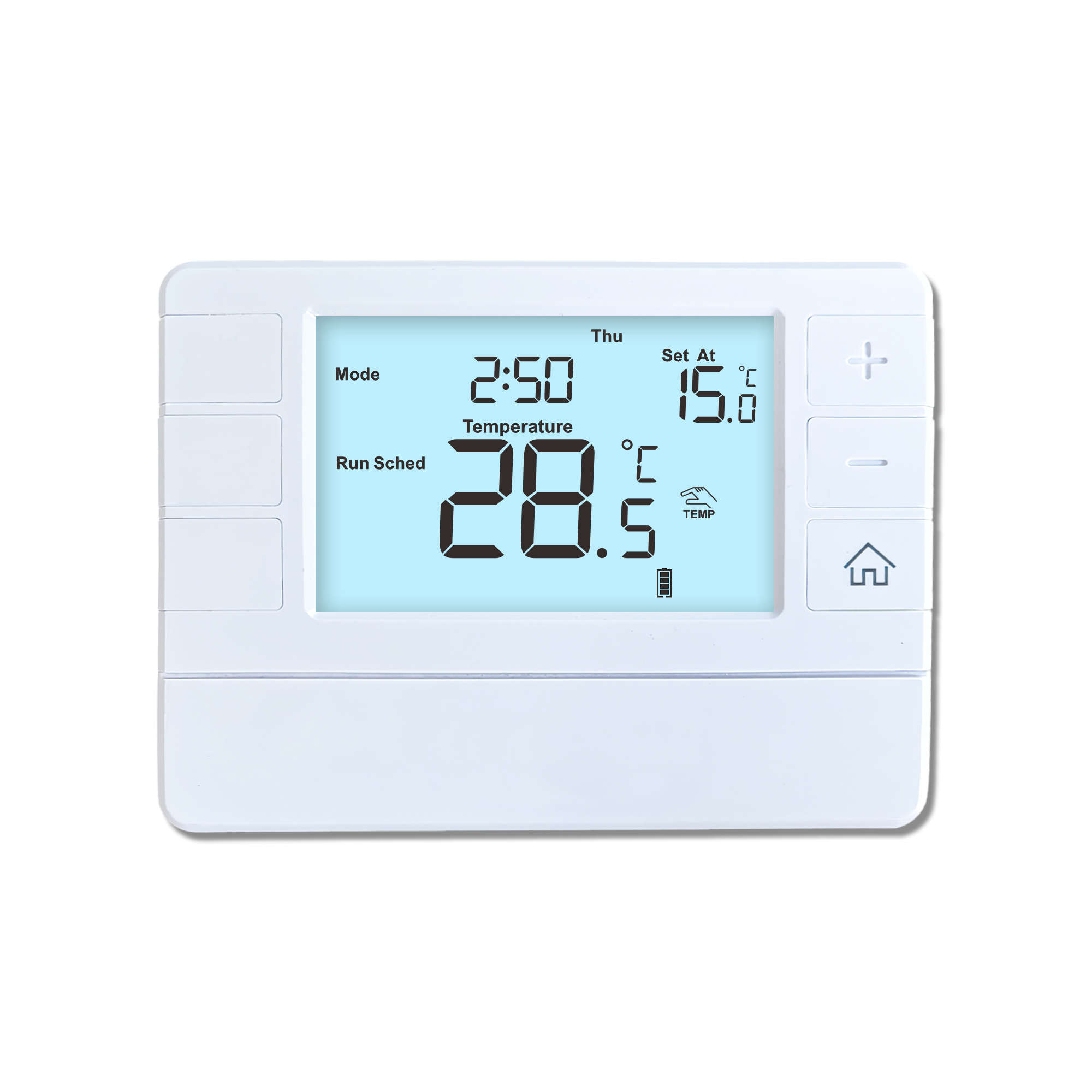
This shift has made traditional, manual thermostats obsolete, paving the way for advanced smart technologies.
Why You Need a Smart Thermostat
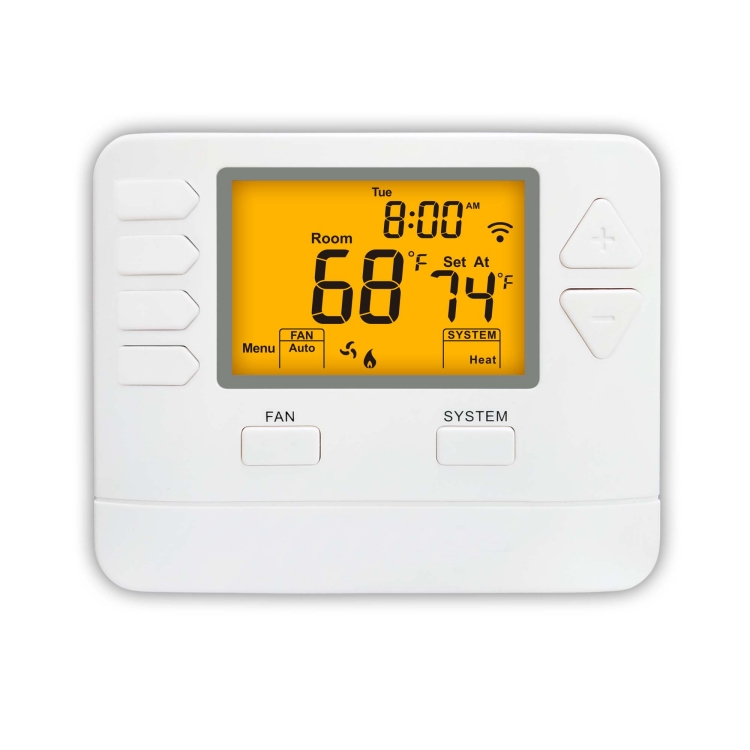
A true 7 Day programmable room thermostat offers the ultimate granular control. It allows users to program a distinct, customized heating and cooling schedule for every single day of the week.
How a 7 Day Programmable Room Thermostat Maximizes Home Comfort and Efficiency
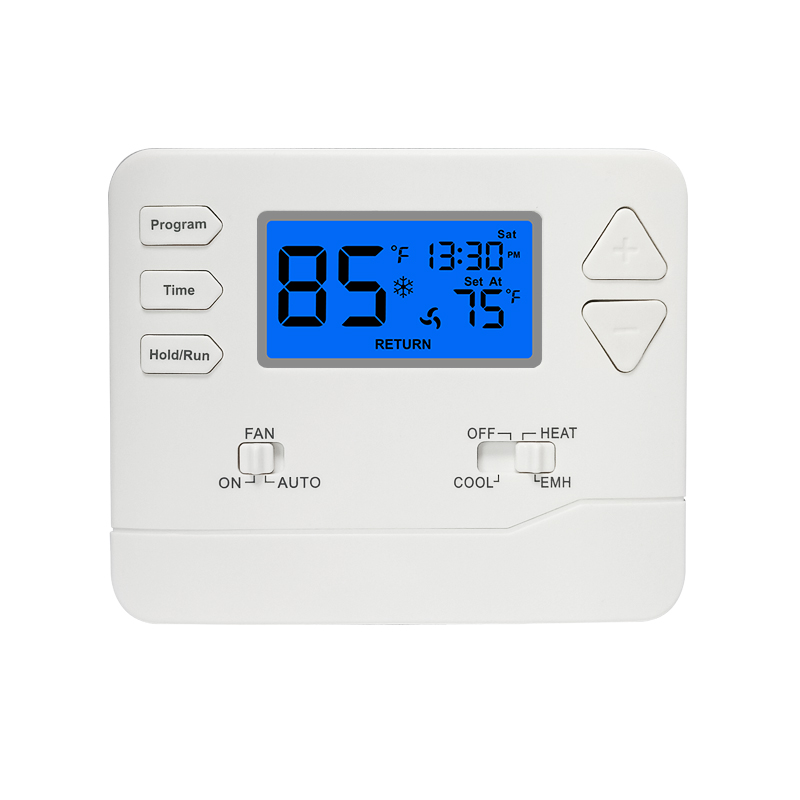
A premium Riseem thermostat is not just a digital display on your wall; it is the ultimate gatekeeper of your indoor environment.
Why a Quality Thermostat Is the Key to a More Comfortable Home
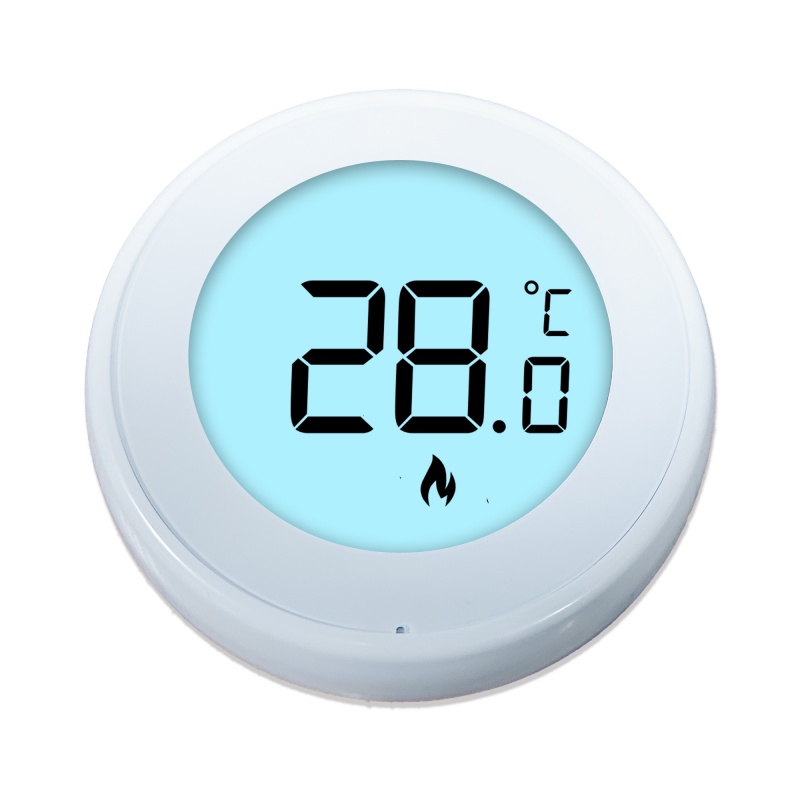
While the TUYA app provides the elegant interface, the physical thermostat remains the brain of the operation. Riseem has engineered a device that looks minimalist on your wall while delivering industrial-grade precision to your HVAC equipment.
Welcome to the Future of Home Automation The Ultimate Guide to TUYA WIFI Smart Thermostats